Installation and Updates
Before installation
Before installation, you must perform the following actions:
In the Members Area, check if your IP address is correctly specified (for users with a dynamic IP address, it is required to change the IP address when switching to a new one)
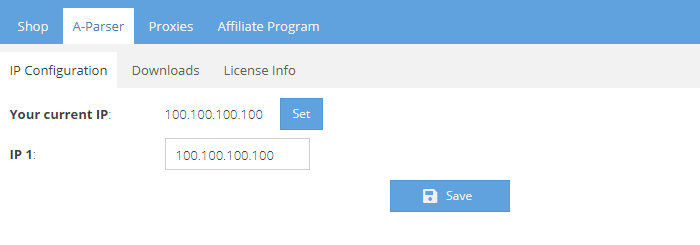
Go to the A-Parser -> Downloads tab
Before downloading the required version, you should first click Update to update to the latest version of A-Parser
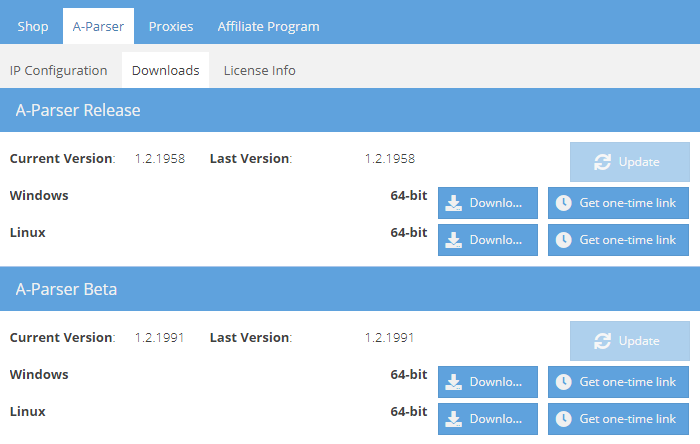
A-Parser Release - stable version of A-Parser, more details about the release of new versions can be found in the News section
A-Parser Beta - intermediate version of A-Parser, which is constantly updated, more details about changes can be found on the forum in the Next Release section
Installation of A-Parser
⏩ A-Parser Video: installation, launch, and update
Installation on Windows
After you complete the Before installation stage, you need to download the program archive and extract it to the folder you need (it can be any folder, even on the desktop)
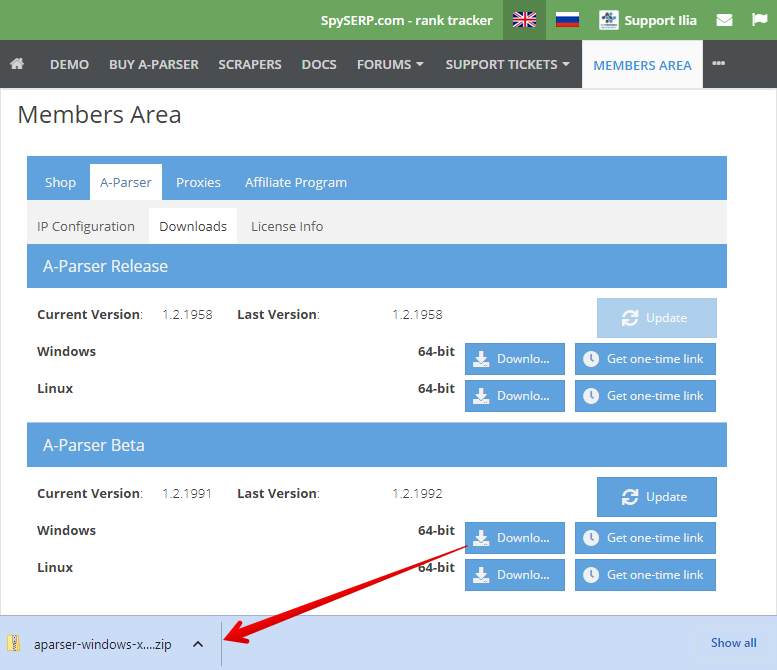
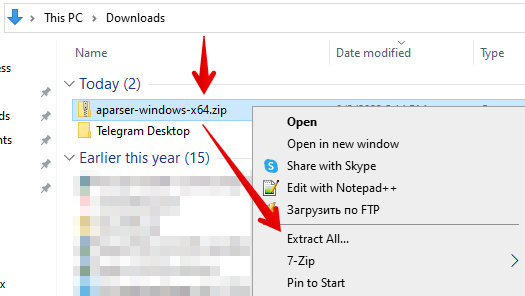
Go to the aparser folder and run aparser.exe
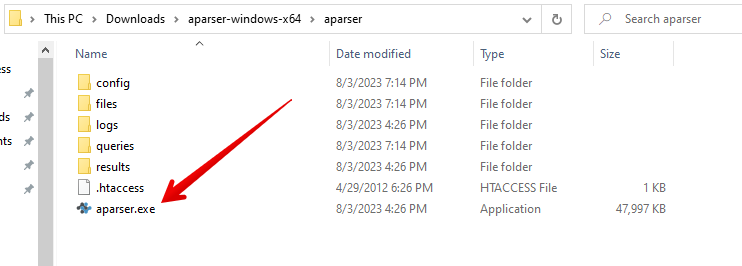
The first launch may take a long time, from 30 seconds to several minutes. After the server window appears, open http://127.0.0.1:9091/ in your browser
Default password is empty. Just click the Login button, after which the A-Parser web interface will appear
Troubleshooting
Incompatible programs
Compatibility issues are known with the following antiviruses and programs:
- Norton Internet Security - unstable scraper operation is possible
- Emsisoft Anti-Malware - unstable scraper operation is possible
- Guard Mail.ru - must be completely removed from the system
- HTTPDebugger - interrupts A-Parser operation 2 hours after launch
Disabling Windows Indexing Service
The indexing service can block access to files during A-Parser operation. If the scraper does not start or crashes during operation, you must check the A-Parser log for the following entries:
IO error: ... Append: cannot write
or
sysopen: Permission denied
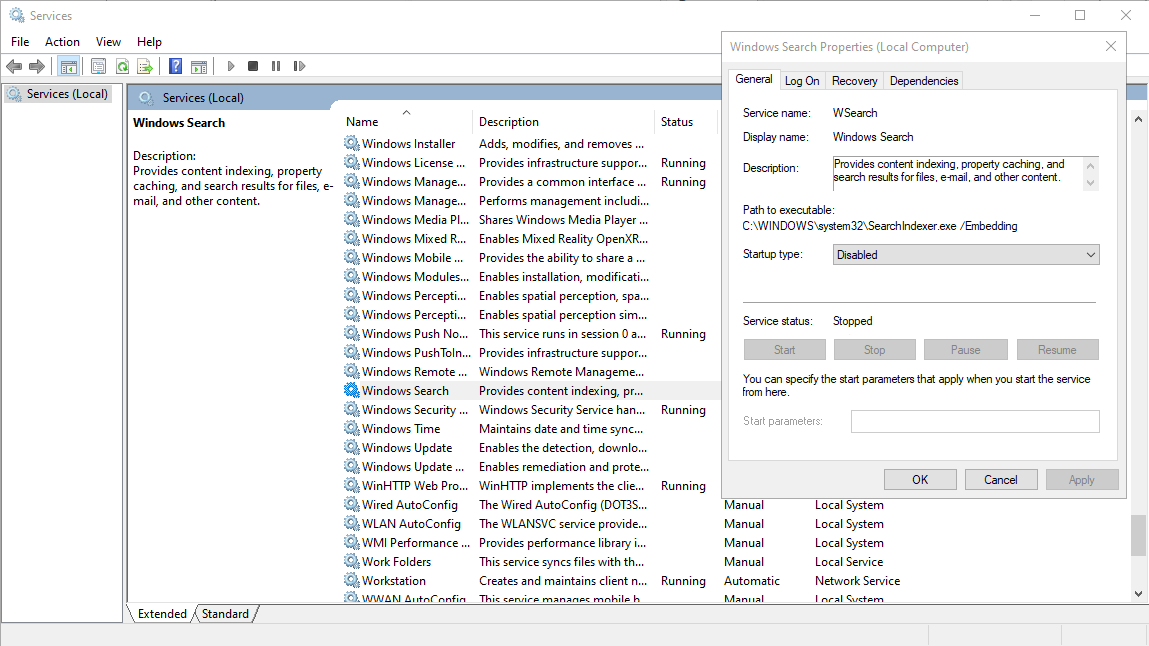
To disable the indexing service, follow these steps:
- Open
Service Management: Start - Run or the keyboard shortcut Win + R, enter services.msc - In the window that opens, select
Windows Search, right-click and selectProperties - In the properties window on the
Generaltab, change the Startup type toDisabledand clickApply - If the
Stopbutton is active after this - click it and stop the service
Error while updating distribution
In some cases, Windows may block access to A-Parser distribution files, in which case the following entry will be in aparser.log:
remove_tree failed for dist\nodejs\node_modules\...
To solve the problem:
- make sure there are no hung
aparser.exeoraparser-node.exeprocesses in the task manager - delete the
distfolder in the A-Parser directory, if Windows reports a deletion error - rename thedistfolder todist_
Installation on MacOS
Currently, installation on MacOS is possible using Docker
Default password is empty. Just click the Login button, after which the A-Parser web interface will appear
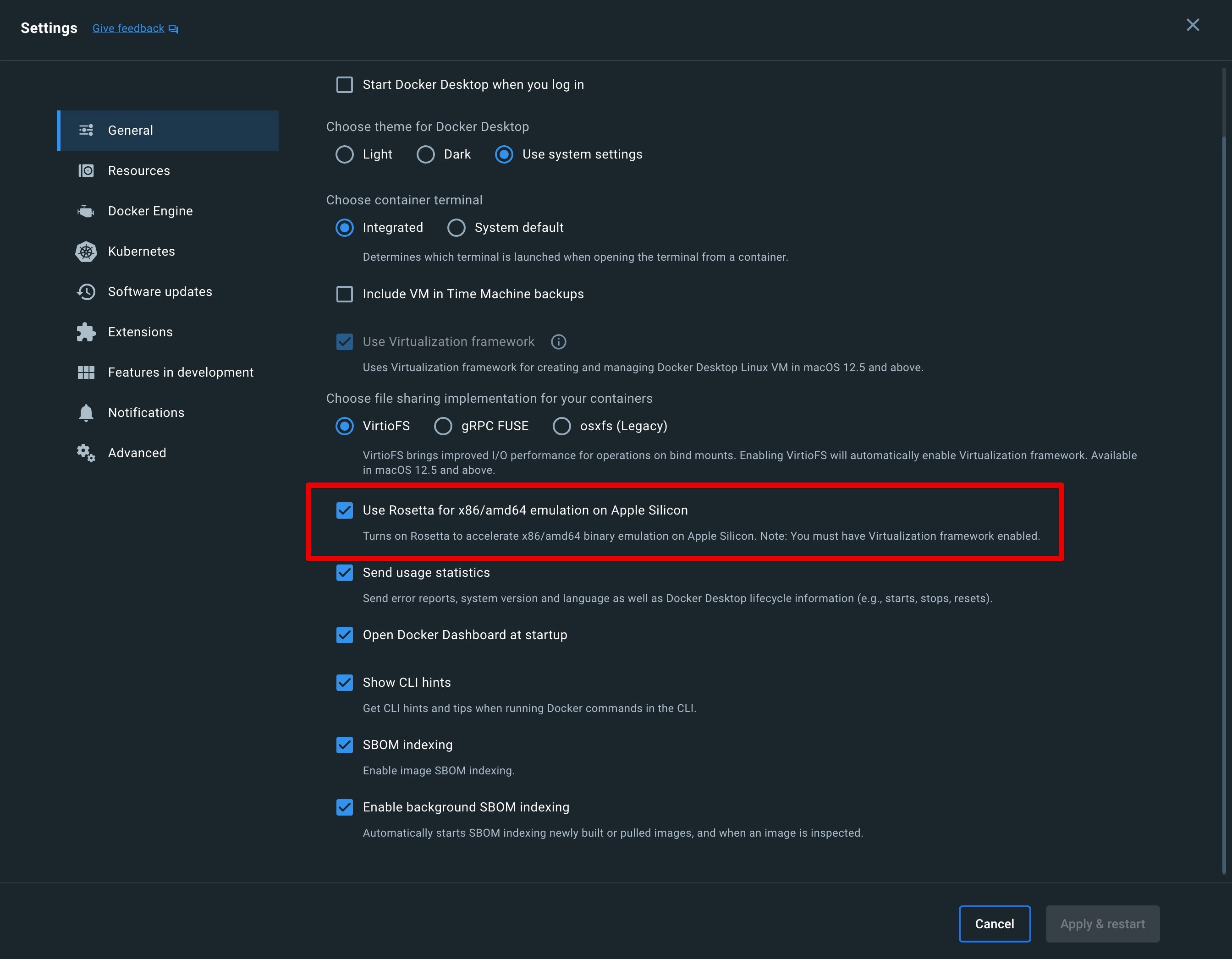
On MacOS with Apple processors, you must enable the following option in Docker Desktop
Installation on Linux
We recommend using docker or docker-compose to install A-Parser on Linux; for a classic installation, follow these instructions
A-Parser implements its own web server, so choose a directory without web access for installation
For convenience of downloading from the server, one-time links are implemented. In the Members Area, you need to click Get one-time link - you can download the distribution once using the received link. In the terminal, go to the installation directory (for example ~/) and execute the following commands using the received link:
wget https://a-parser.com/members/onetime/ce42f308eaa577b5/aparser-linux-x64.tar.gz
tar zxf aparser-linux-x64.tar.gz
rm -f aparser-linux-x64.tar.gz
cd aparser/
chmod +x aparser
./aparser
The first launch may take a long time, from 30 seconds to several minutes. After the server window appears, open http://127.0.0.1:9091/ in your browser; you can also access A-Parser using the server's public IP address
Default password is empty. Just click the Login button, after which the A-Parser web interface will appear
Please note that by default A-Parser is available on all interfaces. We recommend setting a strong password and, if necessary, restricting access using iptables
Troubleshooting
Sometimes some libraries may be missing on the server, for example:
./aparser
./aparser: error while loading shared libraries: libz.so.1: cannot open shared object file: No such file or directory
You need to install the missing libraries:
yum -y install zlib
And restart A-Parser:
./aparser
If no messages are issued, this indicates a successful launch of A-Parser. You can verify this with the command tail -f aparser.log
If aparser.log contains such lines:
./dist/nodejs/bin/aparser-node: /lib64/libc.so.6: version `GLIBC_2.25' not found (required by ./dist/nodejs/bin/aparser-node)
./dist/nodejs/bin/aparser-node: /lib64/libc.so.6: version `GLIBC_2.28' not found (required by ./dist/nodejs/bin/aparser-node)
then this indicates the use of an outdated version of Linux, and in such a case it is recommended to update the OS or use docker or docker-compose
Configuring Linux for more threads
By default, Linux limits the number of open files and sockets to 1024 per user; to increase the limit, execute the following commands:
echo 'root soft nofile 10240' >> /etc/security/limits.conf
echo 'root hard nofile 10240' >> /etc/security/limits.conf
If you are running the scraper not as root but as another user, replace root with the username
It is also necessary to increase the size of the ip_conntrack table:
sysctl -w net.ipv4.netfilter.ip_conntrack_max=262144
echo 'net.ipv4.netfilter.ip_conntrack_max=262144' >> /etc/sysctl.conf
In the absence of the iptables firewall, an error will be displayed for this command - just ignore it
You need to re-enter the terminal (ssh), then restart A-Parser. To check the current limit, execute:
ulimit -n
On some systems, it is additionally required to add the following line to the /etc/pam.d/common-session file:
session required pam_limits.so
Installation on FreeBSD
Currently, the Linux emulator for FreeBSD is unable to work stably with A-Parser
File structure of the installed program
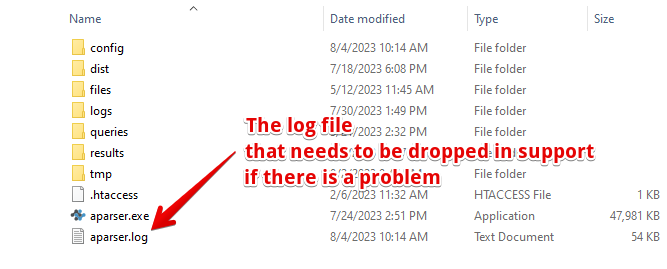
A-Parser working directory structure:
| File | Description |
|---|---|
config | Directory with configuration files, we recommend making a backup before updating A-Parser |
dist | Directory with A-Parser distribution, includes NodeJS and other additional modules |
files/proxy | Directory with proxy checker settings |
files/parsers | Directory contains source codes of JavaScript scrapers that were created or imported by the user |
logs | Task execution logs |
queries | Directory with queries for scrapers |
results | Scraping results directory |
tmp | Temporary directory |
.htaccess | Apache web server configuration file to protect the working directory from web access |
aparser.exe or aparser | A-Parser executable file |
aparser.log | A-Parser operation log, the main way to diagnose the current state and possible errors |
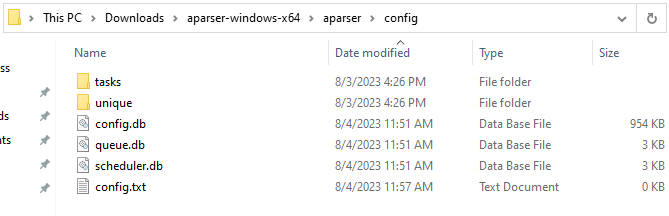
config directory structure:
| File | Description |
|---|---|
tasks | Directory with task files (active and completed) |
unique | Directory with deduplication files |
config.db | Main configuration file where settings and presets are stored |
queue.db | File with task queue data |
scheduler.db | File with scheduled task data |
config.txt | Additional Configuration file |
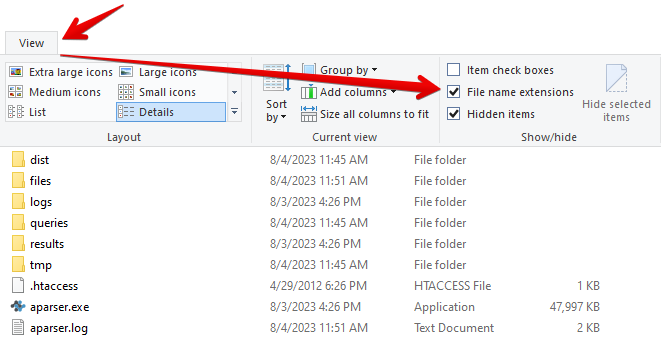
To display file extensions in the Windows operating system, enable the following setting:
Initial setup
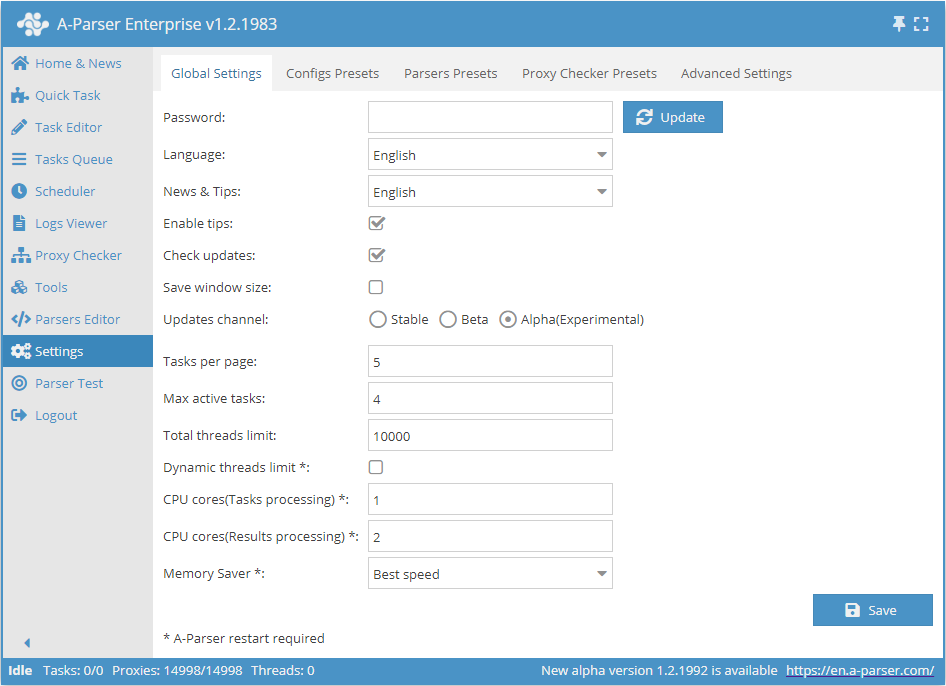
When starting to work with A-Parser, it is necessary to pre-configure it for yourself in the Settings -> Global Settings menu
- Password - the default password is set to empty, you can create a new password to log into the system.
- Language - the ability to choose the interface language, news, and tooltips - Russian and English are available.
- Check updates and Updates channel - notifications about the release of new versions of the scraper. The update channel allows you to choose between stable, beta, and alpha versions.
The configuration of other options is described in the General Settings section
Default password
The default password is empty. Just click the Login button, after which the A-Parser web interface will appear. To reset the password, see below.
Password reset
You can reset the access password to the scraper by running it from the command line with the -resetpassword option
For Windows:
aparser.exe -resetpassword
For Linux:
./aparser -resetpassword
The password will be reset to empty; to log into A-Parser, just click Login
Updating A-Parser
Update via interface
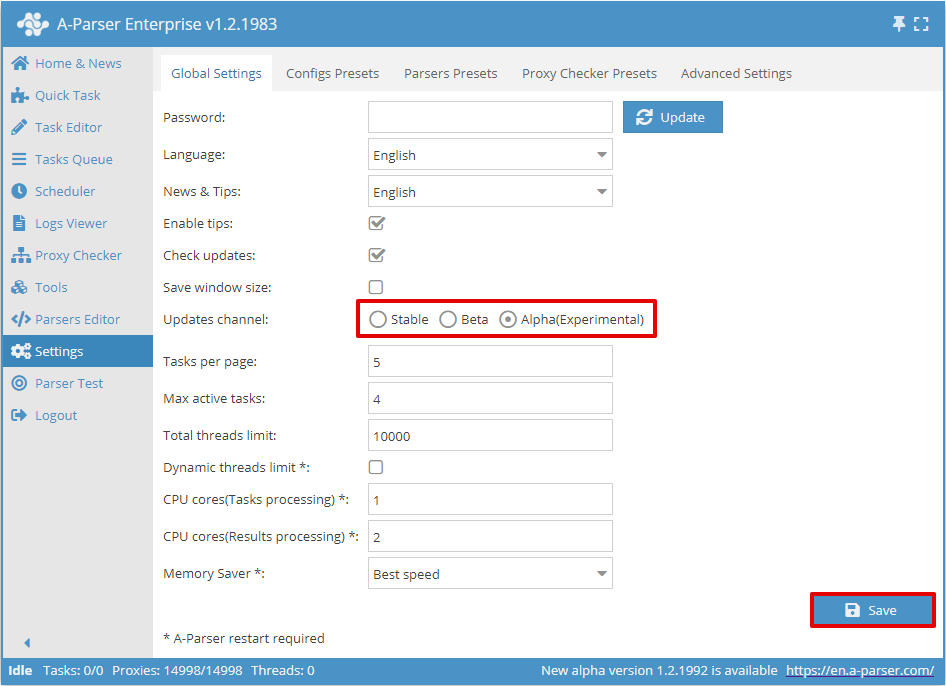
Select the Update Channel in General Settings:
In the Tools menu, go to the Update A-Parser tab:
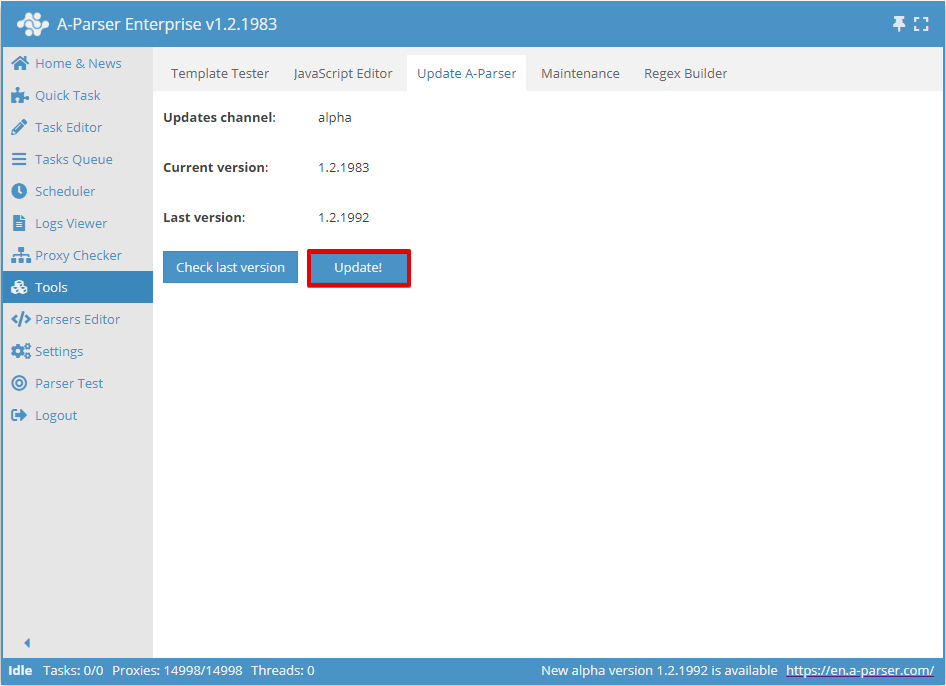
Select the files to update, A-Parser will be restarted:
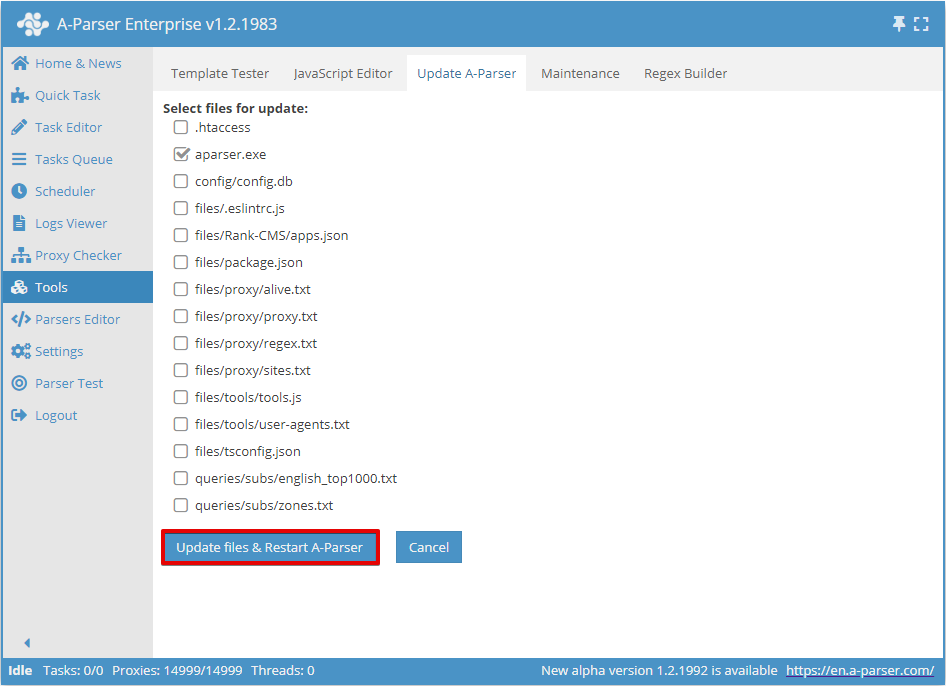
Attention! Unless otherwise specified, it is sufficient to update only the executable file (aparser.exe or aparser)
Manual update on Windows
In general, it is sufficient to replace the scraper's executable file.
- Stop A-Parser - click
Stop server - Download the archive from the Members Area and overwrite
aparser.exe - Run
aparser.exe
Manual update on Linux
- Stop A-Parser - in the console execute
killall aparser - Download the archive from the Members Area and overwrite the
aparserfile - Run aparser - in the console execute
./aparser
Update using one-time link
wget https://a-parser.com/members/onetime/0d19621928c25a48/aparser.tar.gz
kill $(cat files/pid)
sleep 1
tar xzf aparser.tar.gz -O aparser/aparser > aparser
rm -f aparser.tar.gz
chmod +x aparser
./aparser
Installing one license on multiple computers
Each license can be used simultaneously on only one PC/server. At the same time, having one license, it is not forbidden to install A-Parser on several computers at once. But in this case, A-Parser can only be launched on the PC/server whose IP is specified in the Members Area
An example of such use could be a work PC and a home laptop: the scraper can be installed on both machines, and used either on the work PC or on the home laptop. The number of IP changes in the Members Area is unlimited, but it is not recommended to do this more than 5 times a day, as otherwise you may be required to confirm the absence of fraudulent actions.
To run A-Parser simultaneously on multiple computers or servers, perform the following actions:
- Add Additional licenses
- In the Members Area, go to the A-Parser -> IP Configuration tab
- Enter the IP addresses of the additional computers
Installing multiple copies on one PC or server
Each license allows you to install and run simultaneously an unlimited number of copies of A-Parser within one machine. This allows you to maximize the capabilities of powerful systems where one copy does not use all resources and performance needs to be increased.
The process of installing multiple copies of the scraper on one system:
- you must download and install each copy in a separate directory according to the standard installation instructions
- in each copy of the scraper, you must create a
config.txtfile in the config directory and specify a setting of this type:
bind: 0.0.0.0:9092
- instead of
9092, specify the port on which this copy will work
After that, the scraper can be launched and it will be available on the specified port
Any methods of shared access, as well as renting out A-Parser, are prohibited and if detected, the license will be canceled without a refund or the possibility of restoration.