Settings
A-Parser contains the following settings groups:
- Global Settings - main program settings: language, password, update parameters, number of active tasks
- Config Presets - settings for threads and deduplication methods for tasks
- Parser Presets - ability to configure each individual scraper
- Proxy Checker Settings - number of threads and all settings for the proxy checker
- Advanced Settings - optional settings for advanced users
- Task presets - saving tasks for future use
All settings (except global and additional) are saved in so-called presets - sets of pre-saved settings, for example:
- Different settings presets for the
 SE::Google scraper - one for scraping links with a maximum depth of 10 pages, another for assessing competition for a query, scraping depth of 1 page
 - Different proxy checker setting presets - separate for HTTP and SOCKS proxies
For all settings, there is a default preset (default); it cannot be changed, all changes must be saved in presets with new names.
Global Settings
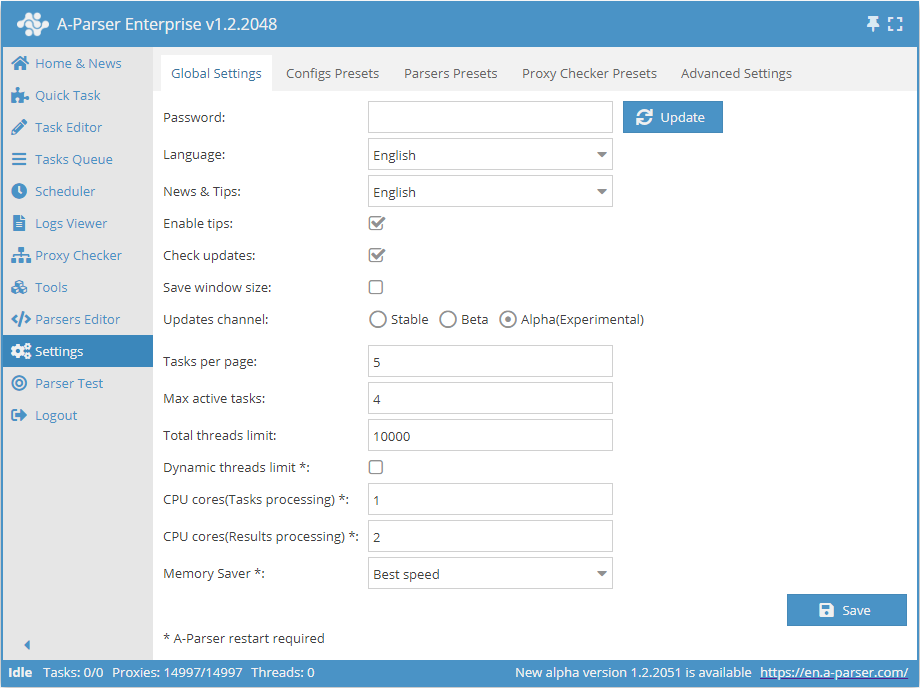
| Parameter name | Default value | Description |
|---|---|---|
| Password | No password | Set a password for logging into A-Parser |
| Language | English | Interface language |
| News & Tips | English | Language for news and hints |
| Enable tips | ☑ | Determines whether to display hints |
| Check updates | ☑ | Determines whether to display information about new update availability in the Status bar |
| Save window size | ☐ | Determines whether to save the window size |
| Updates channel | Stable | Selection of update channel (Stable, Beta, Alpha) |
| Tasks per page | 5 | Number of tasks per page in the Task Queue |
| Max active tasks | 1 | Maximum number of active tasks |
| Total threads limit | 10000 | Global thread limit in A-Parser. A task will not start if the global thread limit is less than the number of threads in the task |
| Dynamic thread limit | ☐ | Determines whether to use Dynamic thread limit |
| CPU cores (task processing) | 2 | Support for processing tasks on different CPU cores (Enterprise license only). Described in detail below |
| CPU cores (result processing) | 4 | Multiple cores are used only during filtering, Results Builder, Parse custom result (all license types) |
| Memory Saver | Best speed | Allows determining how much memory the scraper can use (Best speed / Medium memory usage / Save max memory). Read more... |
CPU cores (task processing)
Support for processing tasks on different CPU cores; this feature is available only for the Enterprise license
This option speeds up (many times over) the processing of multiple tasks in the queue (Settings -> Max active tasks), but it does not speed up the execution of a single task
Intellectual distribution of tasks across worker cores based on the CPU load of each process is also implemented The number of CPU cores used is set in the settings, default is 2, maximum is 32
As with threads, it is better to choose the number of cores experimentally; reasonable values would be 2-3 cores for quad-core processors, 4-6 for eight-core processors, etc. It should be considered that with a large number of cores and high load, 100% load of the main control process (aparser/aparser.exe) may occur, at which point further increasing processes for task processing will only cause overall slowdown or unstable operation. It should also be noted that each task processing process can create an additional load of up to 300% (i.e., load 3 cores at 100% simultaneously); this feature is related to multithreaded garbage collection in the JavaScript v8 engine
Thread Settings
The operation of A-Parser is built on the principle of multithreaded data processing. The scraper performs tasks in parallel in separate threads, the number of which can be flexibly varied depending on the server configuration.
Description of how threads work
Let's look at what threads are in practice. Suppose you need to prepare a report for three months.
Option 1
You can prepare the report for the 1st month first, then for the 2nd, and then for the 3rd. This is an example of single-threaded work. Tasks are solved one by one.
Option 2
Hire three accountants who will each prepare reports for one month. And then, after receiving the results from all three, make a general report. This is an example of multithreaded work. Tasks are solved simultaneously.
As seen from these examples, multithreaded work allows you to complete a task faster, but at the same time requires more resources (we need 3 accountants instead of 1). Multithreading works similarly in A-Parser. Suppose you need to scrape information from several links:
- with one thread, the application will scrape each site one by one
- when working in multiple threads, each will process its own link, and upon completion, will proceed to the next unprocessed one in the list
Thus, in the second option, the entire task will be completed significantly faster, but it requires more server resources, so it is recommended to follow the System requirements
Configuring threads
Thread settings in A-Parser are configured separately for each task, depending on the parameters required for its execution. By default, 2 thread configs are available: for 20 and 100 threads, for default and 100 Threads respectively.
To access the settings of the selected config, you need to click on the pencil icon  , after which its settings will open.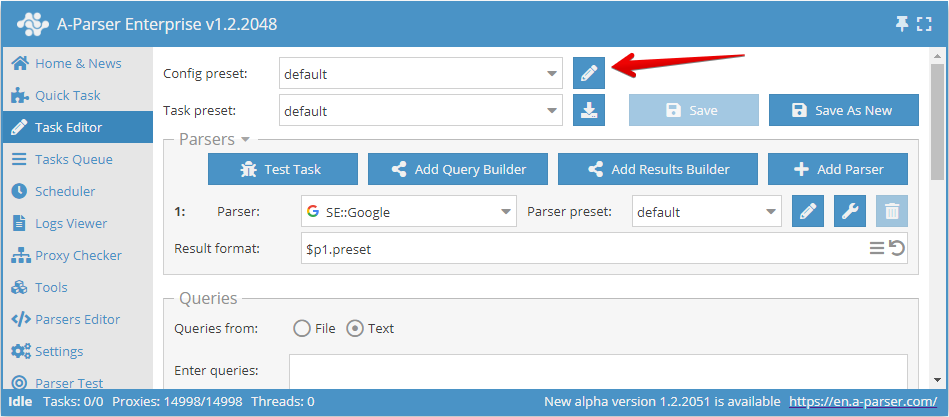
You can also go to the thread settings via the menu item: Settings -> Config Presets
Here we can:
- create a new config with its own settings and save it under its own name (Add new button)
- make changes to an existing config by selecting it from the drop-down list (Save button)
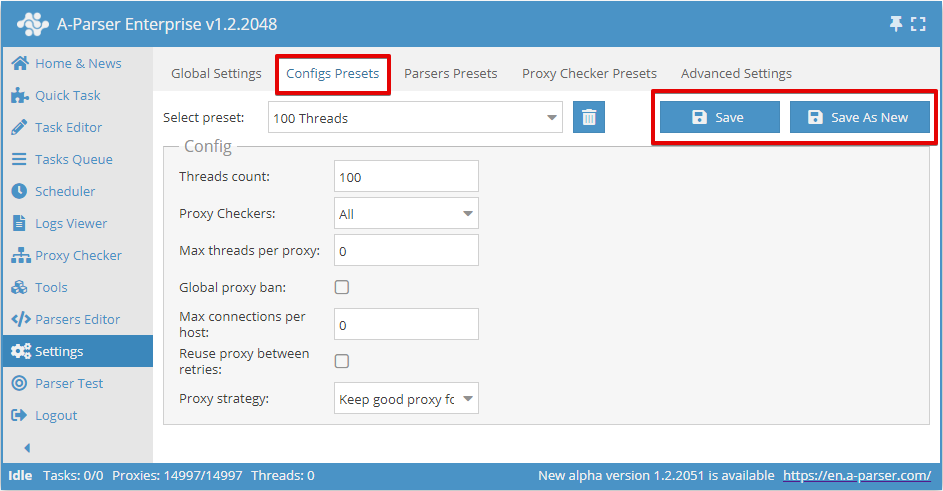
Threads count
This parameter sets the number of threads in which a task launched with this config will work. The number of threads can be any, but you need to consider the capabilities of your server, as well as the proxy plan limit, if such a limit is provided. For example, for our proxies, you can specify no more than the selected plan.
It is also important to remember that the total number of threads in the scraper is equal to the sum of running tasks and enabled proxy checkers with proxy verification. For example, if one task is running at 20 threads and two tasks at 100 threads each, and one proxy checker is also running with proxy verification enabled at 15 threads, then in total the scraper will use 20+100+100+15=235 threads. At the same time, if the proxy plan is designed for 200 threads, there will be many failed requests. To avoid them, you need to lower the number of threads used. For example, disable proxy verification (if it is not needed, this will save 15 threads) and lower the number of threads in one of the tasks by another 20 threads. Thus, for one of the running tasks, you need to create a config for 80 threads, leaving the others as they are
Proxy Checkers
This parameter allows you to select a proxy checker with specific settings. Here you can select the All parameter, which means using all running proxy checkers, or only those that need to be used in the task (multiple positions can be selected)
This setting allows you to run a task only with the required proxy checkers. The process of configuring a proxy checker is covered here
Max threads per proxy
Here you set the maximum number of threads in which the same proxy will be used simultaneously. It allows you to set different parameters, for example, 1 thread = 1 proxy operation.
By default, this parameter is 0, which disables this function. In most cases, this is sufficient. But if you need to limit the load on each proxy, then it makes sense to change the value
Global proxy ban
All tasks launched with this option have a common proxy ban database. The feature of this parameter is that the list of banned proxies for each scraper is common to all running tasks.
For example, a proxy banned in SE::Google in task 1 will also be banned for SE::Google in task 2, but at the same time, it can freely work in  SE::Yandex in both tasks
Max connections per host
This parameter specifies the maximum number of connections per host, intended to reduce the load on a site when scraping information from it. In essence, specifying this parameter allows you to control the number of requests at one moment for each specific domain. Enabling this parameter applies to the task; if you run several tasks simultaneously with the same thread config, the limit will be counted for all tasks.
By default, this parameter has a value of 0, i.e., it is disabled.
Reuse proxy between retries
This setting disables the proxy uniqueness check for each retry, and the proxy ban will also not work. This, in turn, means the ability to use 1 proxy for all retries.
This parameter is recommended to be enabled, for example, in cases where it is planned to use 1 proxy, where the exit IP changes with each connection.
Proxy strategy
Allows you to manage the proxy selection strategy when using sessions: keep the proxy from a successful request for the next request or always use a random proxy.
Recommendations
This article covers all the settings that allow you to manage threads. It is worth noting that when configuring the thread config, it is not necessary to set all the parameters specified in the article; it is enough to set only those that will ensure a correct result. Usually, you only need to change Threads count, other settings can be left at default.
Scraper settings
Each scraper has many settings and allows you to save different sets of settings into presets. The preset system allows you to use the same scraper with different settings depending on the situation, let's look at the example of the SE::Google scraper:
Preset 1: "Scraping maximum number of links"
- Pages count:
10
Thus, the scraper will collect the maximum number of links by going through all pages of the search results
Preset 2: "Scraping competition by query"
- Pages count:
1 - Results format:
$query: $totalcount\n
In this case, we get the number of search results for the query (query competition) and for greater speed, it is enough for us to scrape only the first page
Creating presets
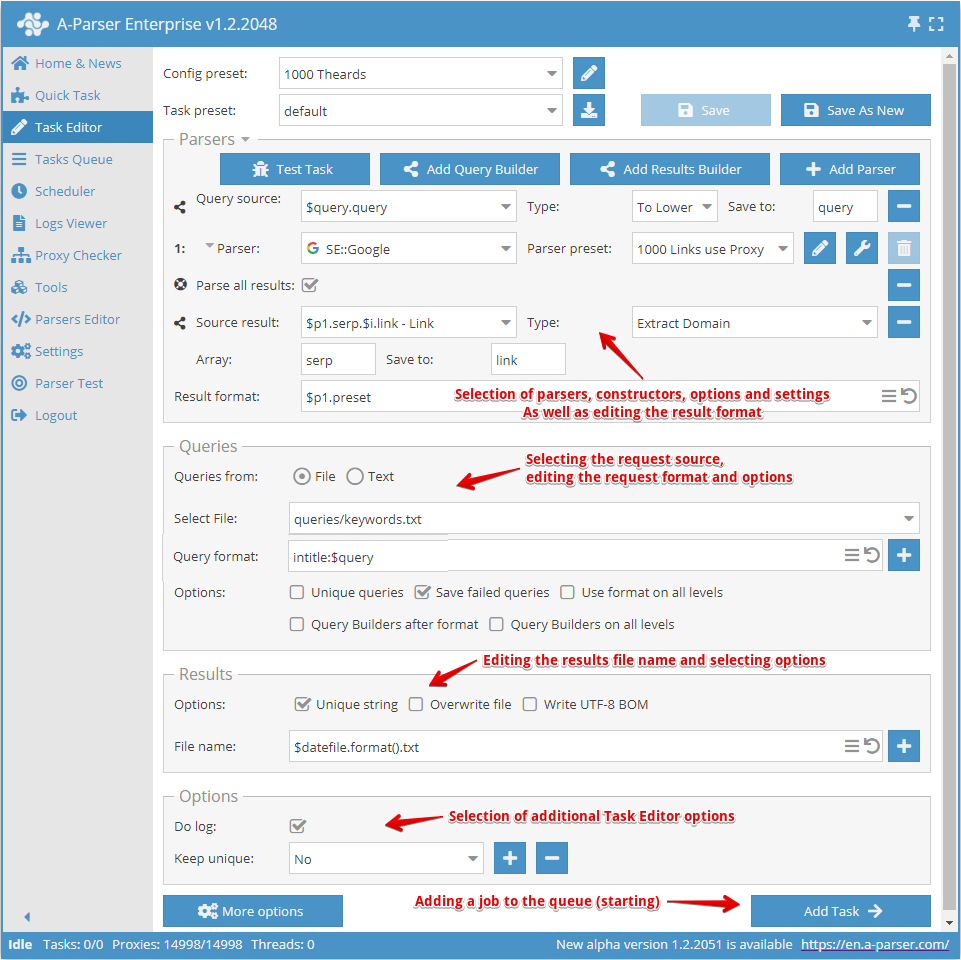
Creating a preset starts with selecting the scraper(s) and determining the result to be obtained.
Next, you need to understand what the input data will be for the selected scraper; in the screenshot above, the SE::Google scraper is selected, its input data are any strings as if you were searching for something in a browser. You can select a query file or enter queries into the text field.
Now you need to override the settings (select options) for the scraper, add deduplication. You can use the Query Builder if you need to process queries. Or use the Results Builder if you need to process the results in some way.
Next, you should pay attention to editing the result file name, and change it at your discretion if necessary.
The last point is the selection of additional options, especially the Do log option. Very useful if you want to find out the reason for a scraping error.
After all this, you need to save the preset and add it to the Task Queue.
Overriding settings
Override preset - quick overriding of settings for the scraper, this option can be added directly in the Task Editor. You can add several parameters in one click. The settings list shows default values, and if an option is highlighted in bold, it means it is already overridden in the preset
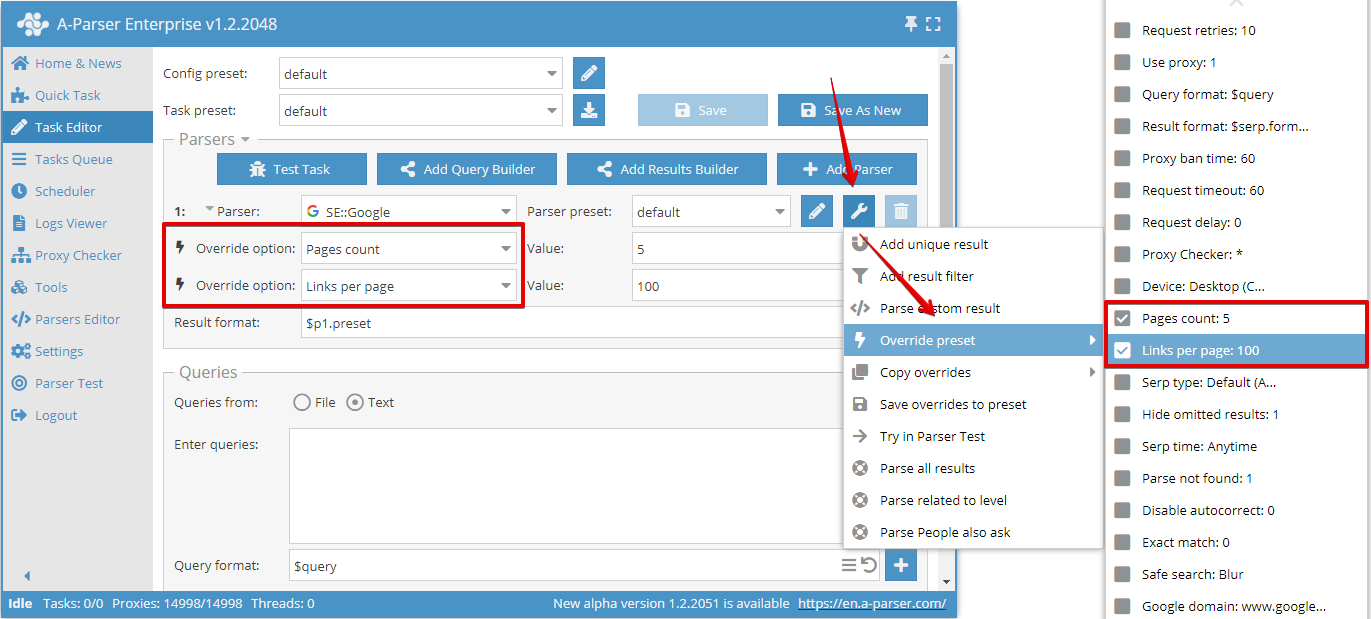
In this example, the Pages count (Number of pages) option was overridden and set to 5.
You can use an unlimited number of Override preset options in a task, but if there are many changes, it is more convenient to create a new preset and save all changes into it.
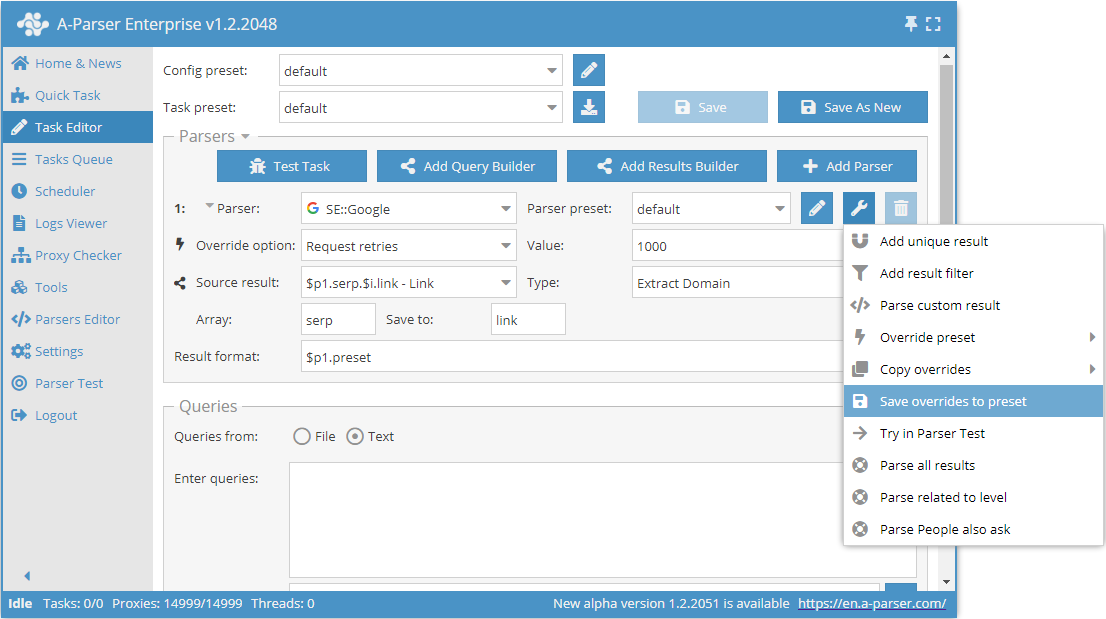
You can also easily save overrides using the Save overrides to preset function. They will be saved as a separate preset for the selected scraper.
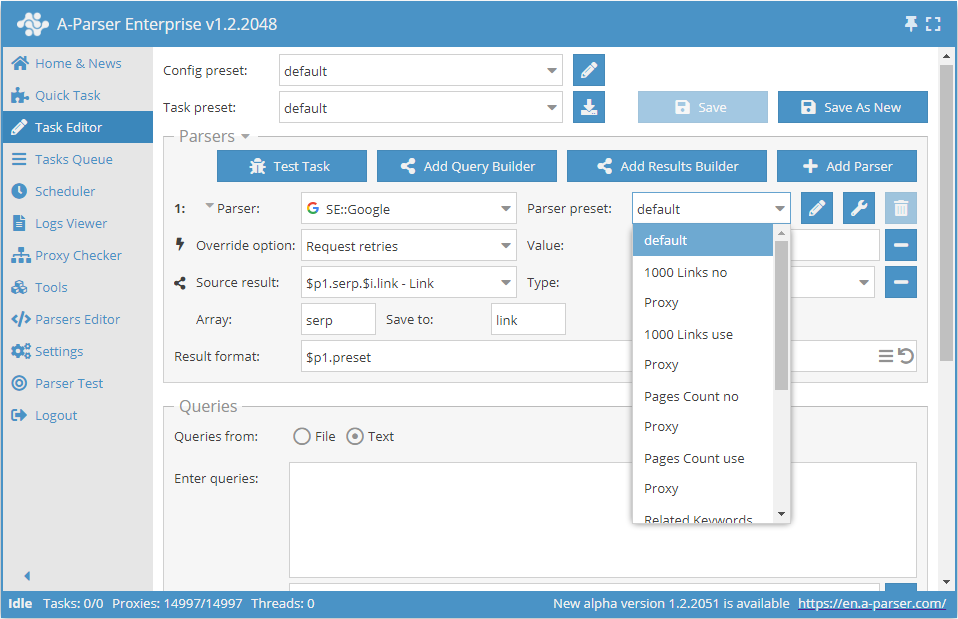
After that, in the future, it is enough to simply select this saved preset from the list and use it.
Common settings for all scrapers
Each scraper has its own set of settings, you can find information on the settings of each scraper in the corresponding section
In this table, we have presented common settings for all scrapers
| Parameter name | Default value | Description |
|---|---|---|
| Request retries | 10 | Number of attempts for each request; if the request cannot be completed within the specified number of attempts, it is considered failed and skipped |
| Use proxy | ☑ | Determines whether to use a proxy |
| Query format | $query | Query format |
| Result format | Each scraper has its own value | Result output format |
| Proxy ban time | Each scraper has its own value | Proxy ban time in seconds |
| Request timeout | 60 | Maximum request wait time in seconds |
| Request delay | 0 | Delay between requests in seconds; a random value in a range can be specified, for example, 10,30 - delay from 10 to 30 seconds |
| Proxy Checker | All | Proxies from which checkers should be used (choice between all or listing specific ones) |
Common for all scrapers working over HTTP protocol
| Parameter name | Default value | Description |
|---|---|---|
| Max body size | Each scraper has its own value | Maximum page size in bytes |
| Use gzip | ☑ | Determines whether to use compression for transmitted traffic |
| Extra query string | Allows specifying additional parameters in the query string |
Default settings for each scraper may differ. They are stored in the default preset in the settings of each scraper.
Proxy checker settings
More about Proxy Checker Settings
Additional settings
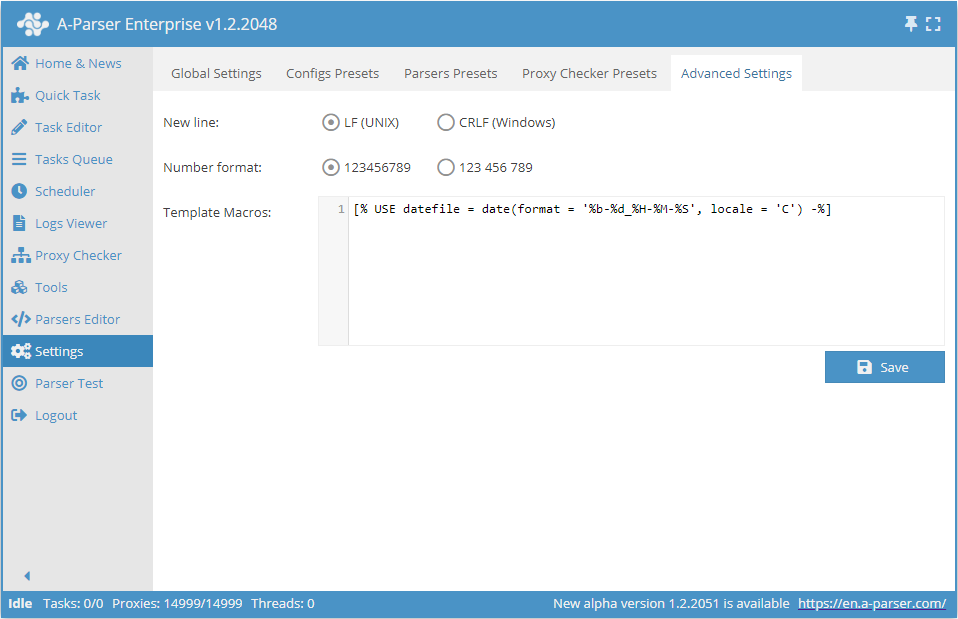
- Line break allows you to choose between Unix and Windows line ending options when saving results to a file
- Number format - sets how to display numbers in the A-Parser interface
- Template macros