 Shop::Wildberries::ProductInfo - Wildberries product page scraper
Scraper Overview
Using the Wildberries product scraper, you can obtain product card data via product links or NM ID.
A-Parser functionality allows you to save scraping settings for future use (presets), set scraping schedules, and much more. You can use automatic query multiplication, substitution of subqueries from files, and iteration through alphanumeric combinations and lists to obtain the maximum possible number of results.
Collected Data
Main
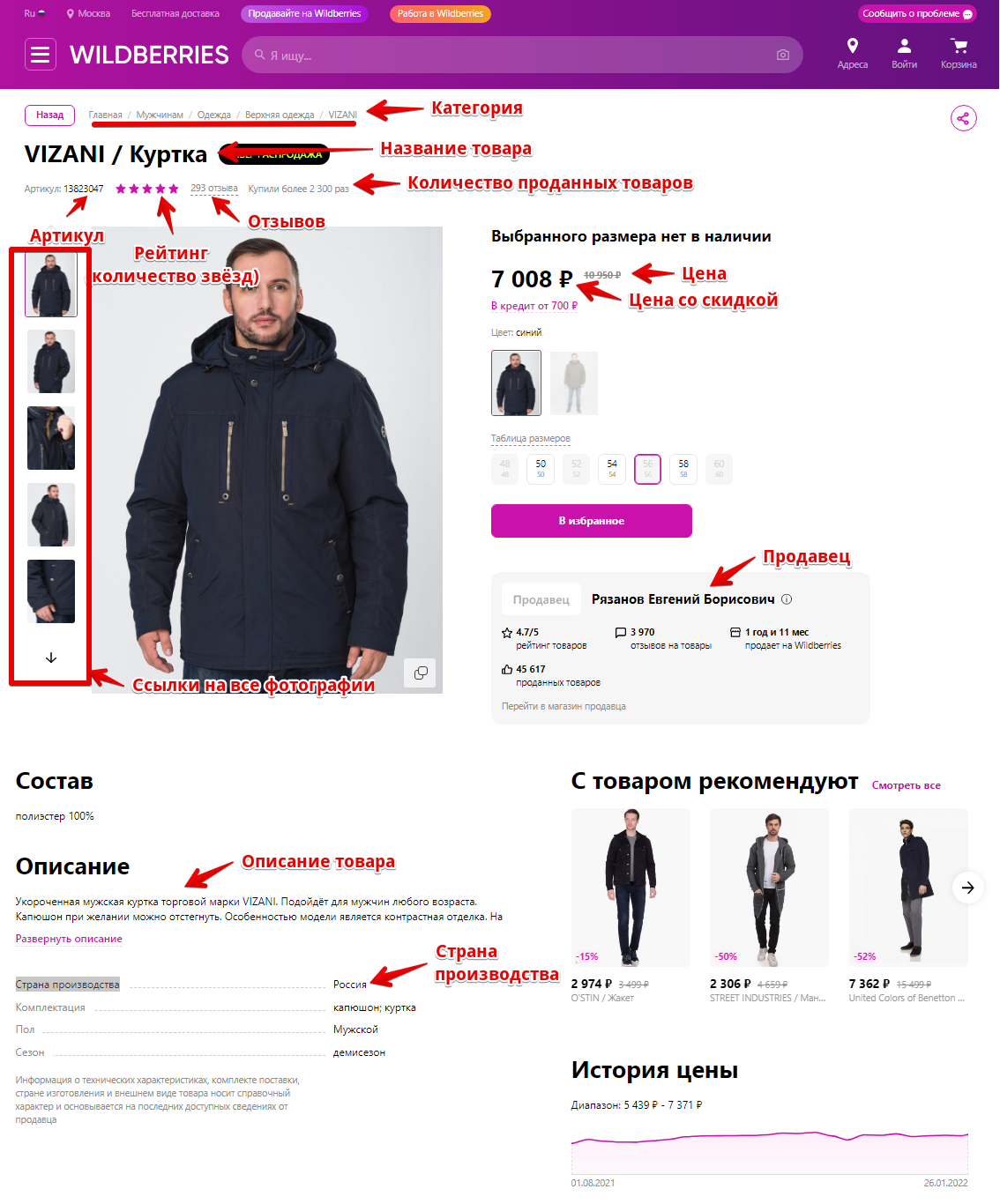
- Product name (
$title) - Category path on WB (
$category) - Brand (
$brand) - Link to brand/category on WB (
$brandSubUrl) - Article, nm ID (
$sku). If the product is unavailable — only$skuis filled - Description (
$description) - Country of manufacture (
$country) - Colors, separated by
;($colors)
Prices and Availability
- Old price, crossed out on the site (
$price) — without shipping - Discounted price (
$discountPrice) — without shipping - Shipping separately (
$logisticsPrice); if none —0 - Price with WB Wallet (
$walletPrice) — only when Currency = RUB; discount ~2% from$discountPrice, without shipping; not for all products — then0 - Stock balance (
$qty) — not the number of sales
Calculate the final price "as on the site" in the template yourself, for example $discountPrice + $logisticsPrice (on the WB storefront, the total may depend on the pickup point, the scraper provides components separately).
Seller
- Seller name (
$seller) - Link to the seller (
$sellerUrl) - Legal name (
$sellerLegalName) - INN (
$inn) - OGRN (
$ogrn) - Trademark (
$trademark) - Legal address (
$legalAddress)
Reviews
- Number of reviews (
$comments) - Product rating (
$rating)
Arrays
- Photos (
$photos.$i.url) — links to product images - Price history (
$prices.$i.date,$prices.$i.price) — different products have different numbers of dates; for some products, history may be missing - WB search tags (
$tags.$i.tag) — "People also searched for with this product"
Use Cases
- Tracking product price dynamics
- Evaluating products by rating, reviews, and availability
- Collecting all product images
Queries
Queries can be a link to the product card (any wildberries.* zone) or card=<NM ID>:
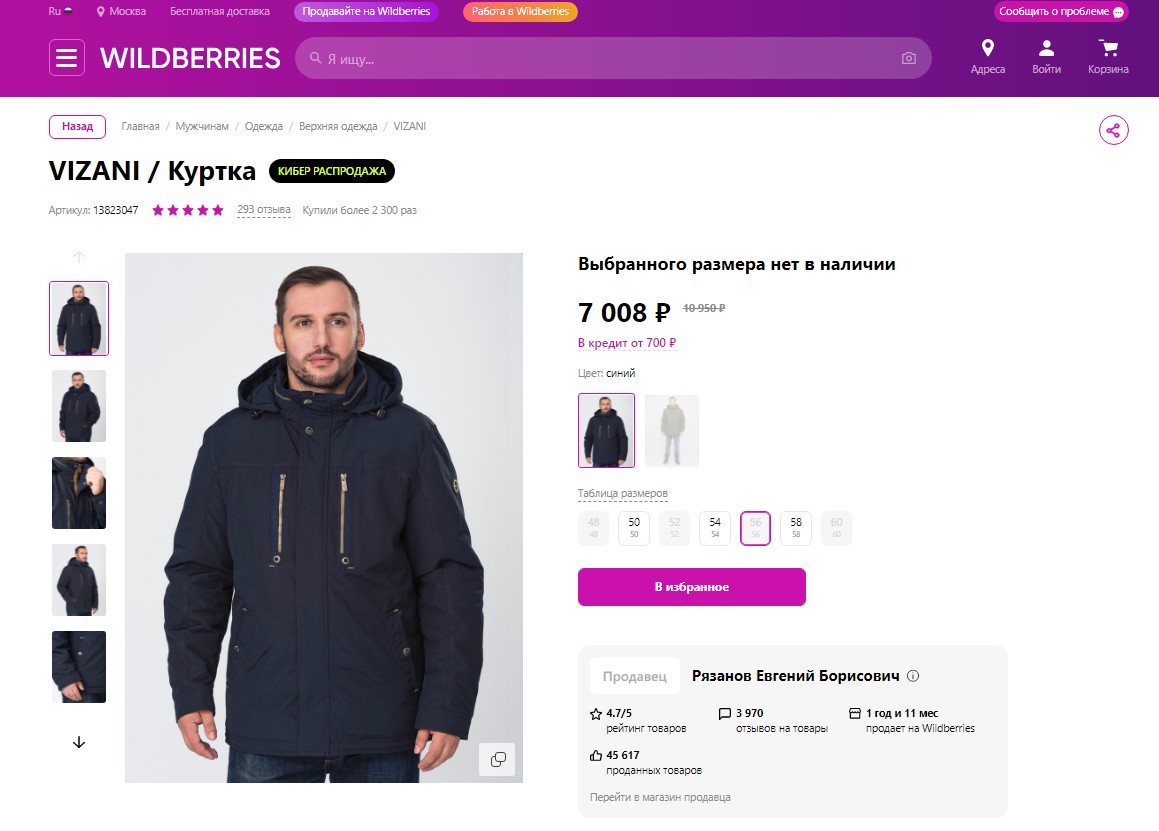
https://www.wildberries.ru/catalog/13823047/detail.aspx
https://www.wildberries.ru/catalog/12622014/detail.aspx?targetUrl=MI
https://www.wildberries.ru/catalog/4068082/detail.aspx?targetUrl=MI
card=4068082
Query Substitutions
You can use built-in substitution macros for queries.
For example, we want the scraper to automatically substitute article numbers into the product link sequentially from 1 to 100 000. For this, you can apply the {num:START:END} macro.
As a query, specify a link to any product and use the macro instead of the article number:
https://www.wildberries.ru/catalog/{num:1:100000}/detail.aspx
This method allows for the easiest and most automatic scraping of Wildberries products even without knowing their article numbers. A-Parser will independently substitute the number in order, visit the page, and collect data if it exists.
Possible Settings
| Parameter | Default Value | Description |
|---|---|---|
| Currency | RUB | Currency of prices in results: RUB, BYN, KZT, KGS, AMD, UZS, TJS, ETB, GEL. $walletPrice is populated only for RUB |
| Address | Moscow | Pickup point address; together with coordinates, it sets the region and affects prices |
| Latitude | 55.753737 | Pickup point latitude |
| Longitude | 37.6201 | Pickup point longitude |
| Max concurrent browser pages | 10 | How many Chrome pages the scraper can open simultaneously. Increase carefully with high thread counts — memory and CPU load will grow |
| Chrome Headless | ☑ | Run browser in background mode |
| Use sessions | ☑ | Saves working sessions. If a session is suitable, the browser is not launched for that query |
By default, Wildberries displays results for Moscow. The scraper allows you to set a pickup point, and the results list will be tied to a specific location. To do this, you need to override 3 parameters: Address, Longitude, and Latitude. You can obtain the necessary values for these parameters in the browser:
1. Select the desired pickup point, having first opened Developer Tools (F12 key in Chrome)
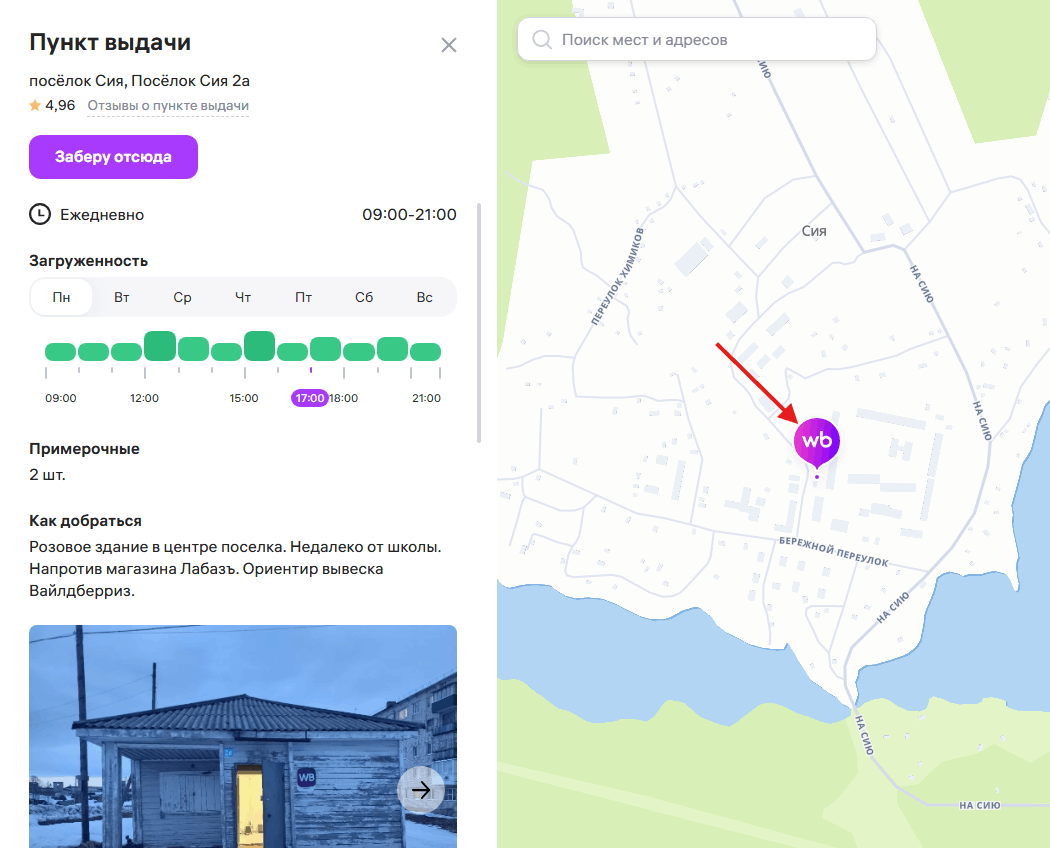
2. In the "Network" tab, look for the show request and copy the data into the scraper settings
After selecting the pickup point, open the Network tab. Find the show request, in the response (Preview) copy address, coordinates into the Address, Latitude, and Longitude fields of the scraper respectively.